NewLive blocks
Live blocks. Slides that do things.
Put working things on your slides: a chart people can point at, a before and after they can drag, a timer for your talk. Pick from 33 free ready-made blocks or describe your own, and it keeps working when you present.
- 33 ready-made blocks, free
- In your slide’s colours and fonts
- Works when you present
- Works on your share link
Try it
Not a video. Go on, use it.
This is a slide with a real Live block on it, the same one you’d add in Pekto. Switch the slide’s theme and the block follows.
Before and after. Drag the divider.
All 33 ready-made blocks
Free to add, with no AI and no credits. Change their words, pictures and colours from Settings; the charts take their numbers from Edit data. Pick one to try it on the slide.
Numbers and charts
Pictures and motion
For the room
How it works
From the Live panel to the room.
- 1
Add one in a click
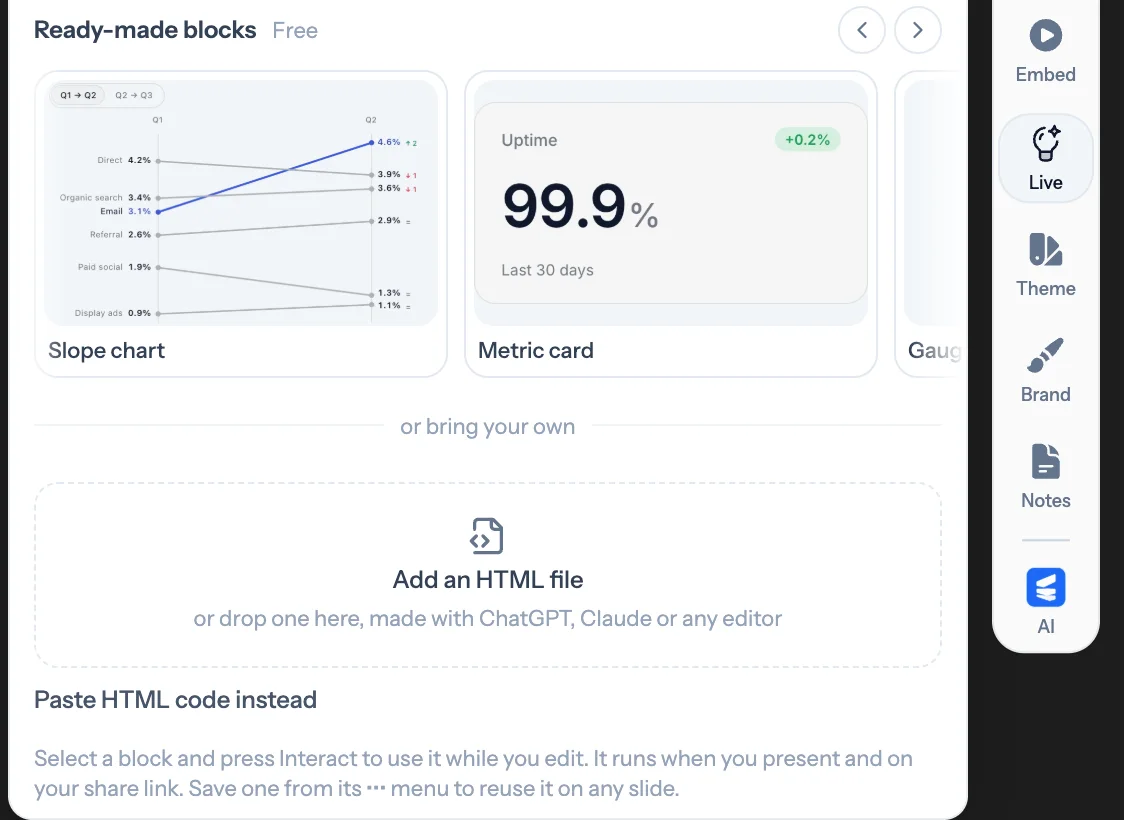
Open Live in the editor’s side rail and pick a ready-made block. It lands on your slide in your theme’s colours and fonts. Made one with ChatGPT or Claude? Add the HTML file or paste the code.
- 2
Make it yours
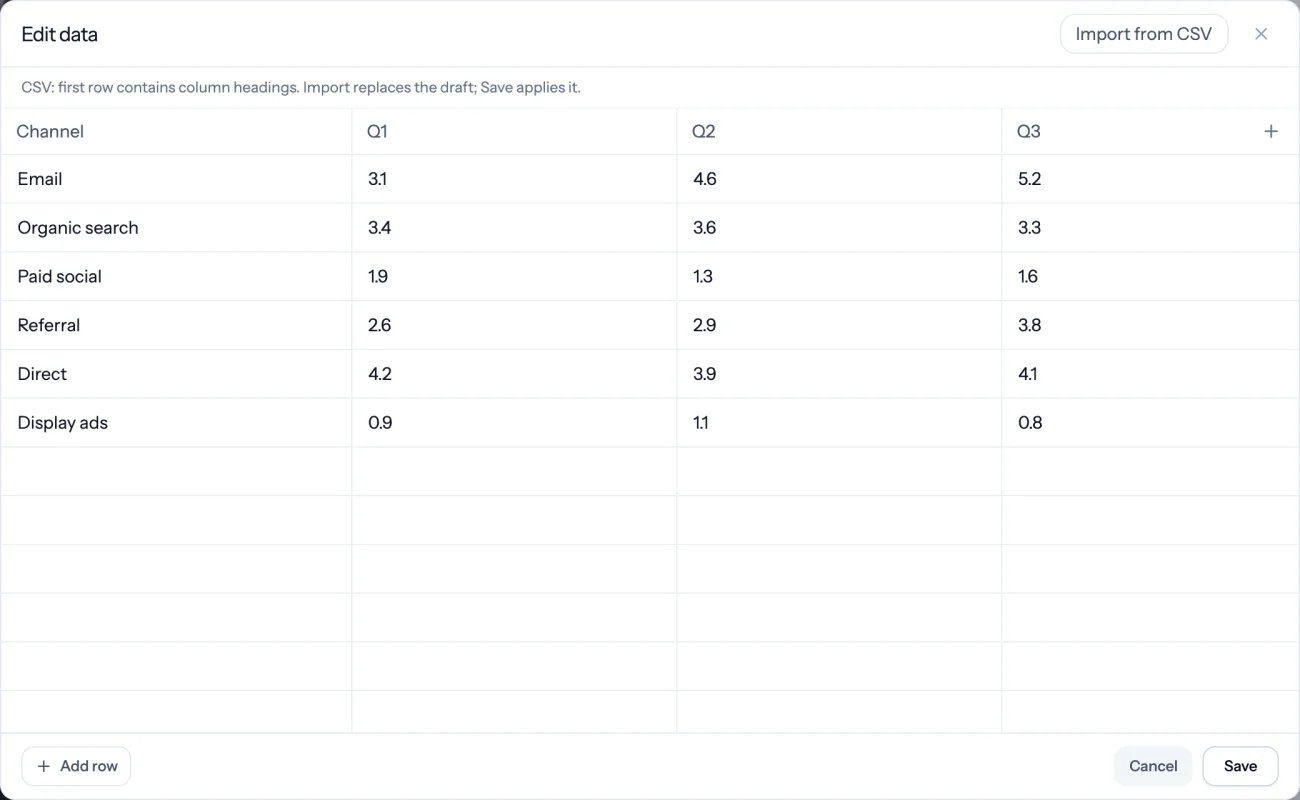
Change the words, pictures and colours from the block’s Settings, with no code and no AI. Charts have Edit data: the same table as Pekto’s charts, with CSV import.
- 3
Present it
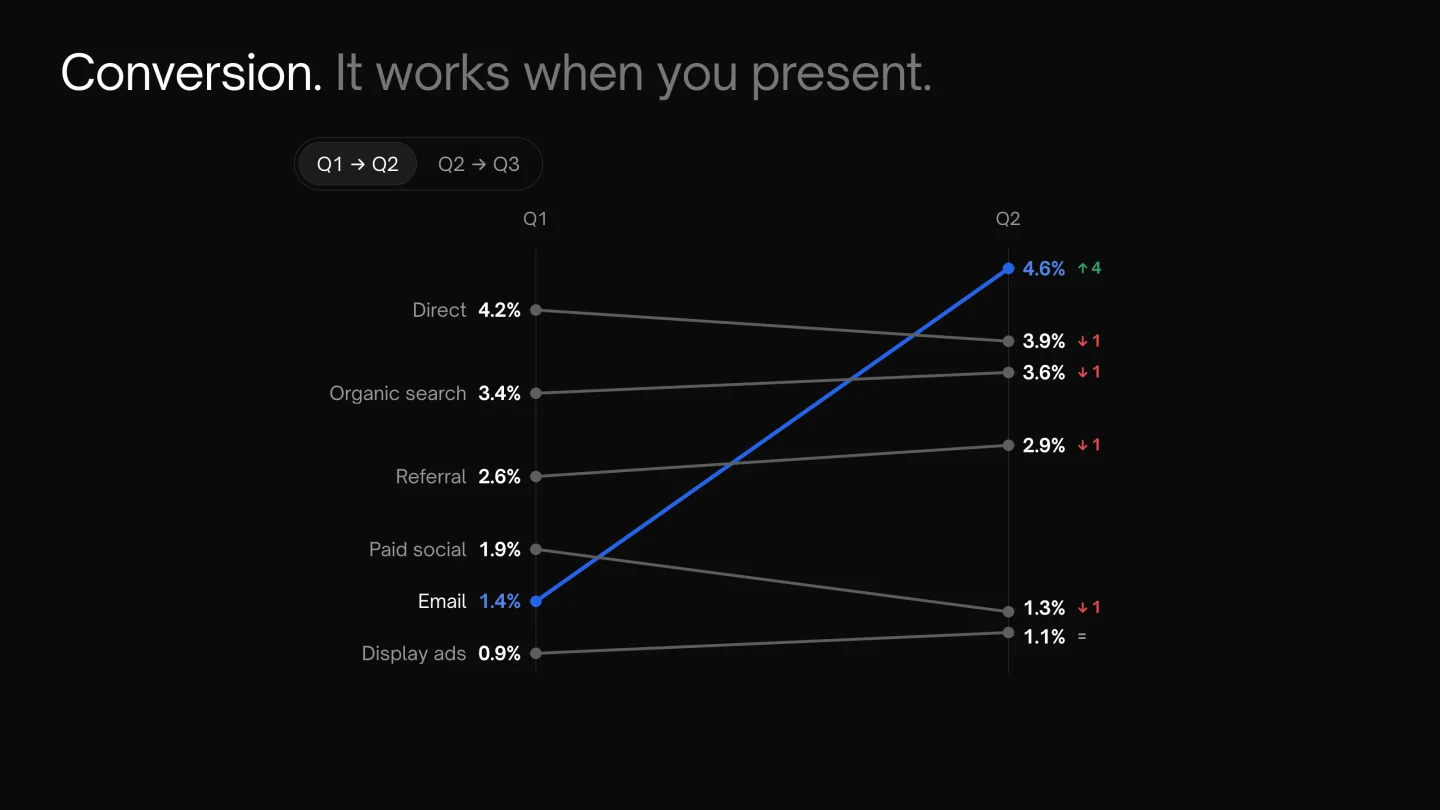
It runs when you present and on your share link, so the room can use it too. PDF and PowerPoint exports get a picture of it.
Pekto AI
Not on the shelf? Describe it.
Tell Pekto AI what you need, like a pricing calculator, a quiz or an ROI calculator, and it builds the block in your slide’s colours and fonts. Want it different? Ask for the change the same way.
Building your own uses Pekto AI credits. Ready-made blocks are free.
Describe anything interactive, like a calculator, a quiz, a timer or tabs.
Wherever the deck goes
Built to be used, not just seen.
When you present
Click, drag and type on it mid-talk.
On your share link
Anyone with the link can use it.
In the editor
Select it and press Interact to try it as you edit.
In exports
PDF and PowerPoint get a picture of it.
In a sandbox
It can’t reach your Pekto account or the rest of the page.